
Connect Konektor to Claude
The Konektor connector gives Claude access to one workspace that you authorize. Use the connector to inspect leads, the Inbox, WhatsApp rules, funnels, campaigns, tracking, and conversions without giving Claude an API key.
Baca panduan ini dalam bahasa Indonesia.
Before you connect
Confirm each prerequisite:
- Your workspace role is owner or admin.
- The workspace uses a Starter, Pro, Enterprise, or Custom plan.
- The workspace subscription status is
activeortrialing. - The selected workspace contains data that you can send to Claude.
The connector is not available to staff or viewers. It is also unavailable to Trial or Free plans and inactive subscriptions.
Connect from Claude
These steps are the same in Claude on the web and in the desktop app.
- Open Customize → Connectors in Claude, then select the Discover tab.
- Type Konektor in the search field, then select the Konektor card.
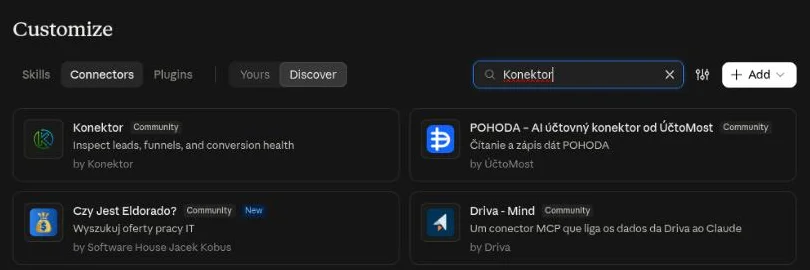
- Review the description and tool list, then select Connect.
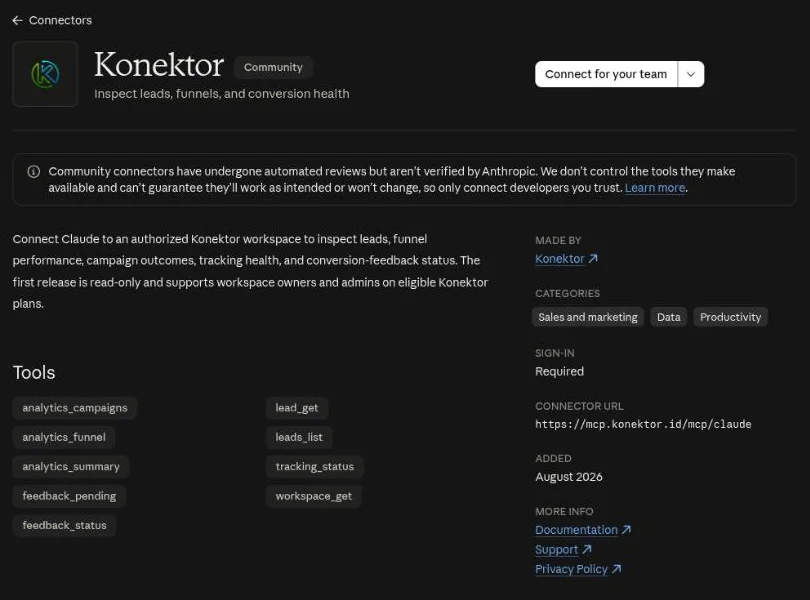
On a Claude Team or Enterprise account, the main button reads Connect for your team. Open the arrow beside it, then select Connect just for me if only you use this connection.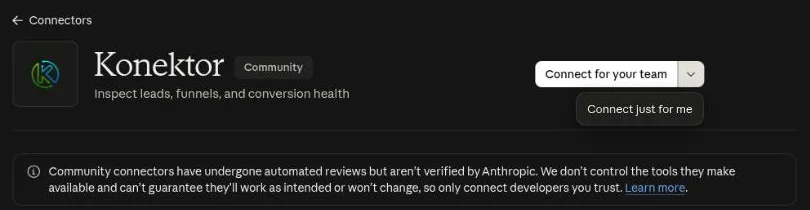
- Sign in to Konektor if Claude asks you to authenticate.
- On the consent screen, select a workspace. Review the permissions and the personal-data warning, then select Allow (Izinkan on the Indonesian screen).
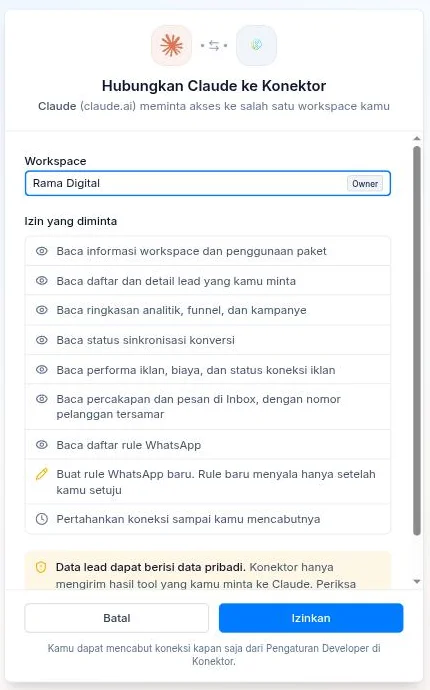
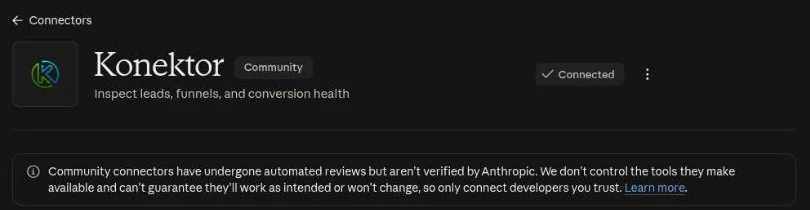
- Claude returns to the connector page and shows Connected.
- Start a new conversation. Select + → Connectors, then make sure Konektor is on.
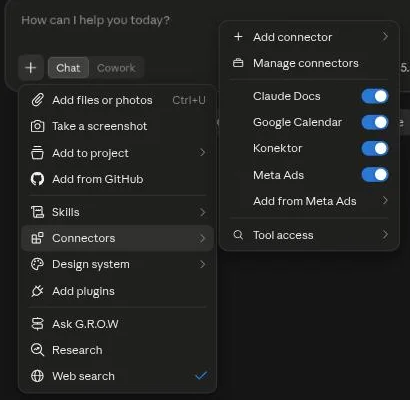
The connection is ready when Claude can run a Konektor tool and show results for the workspace you selected.
Example requests
Write requests in plain language. Claude selects the matching Konektor tool. Before a tool runs for the first time, Claude asks for permission. Select Allow once for one call, or Always allow so Claude stops asking for that tool.
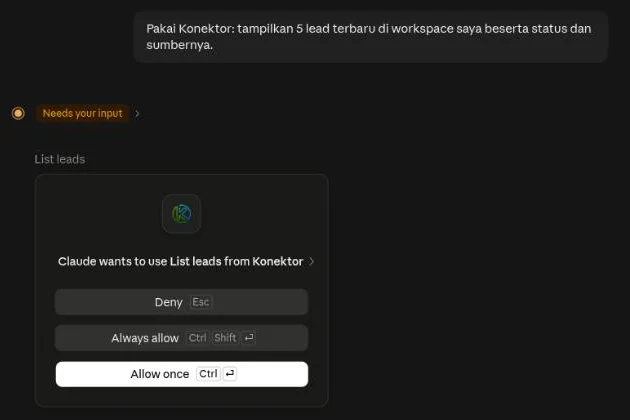
Pull lead data
Example request: "Use Konektor: show the 5 newest leads in my workspace with their status and source."
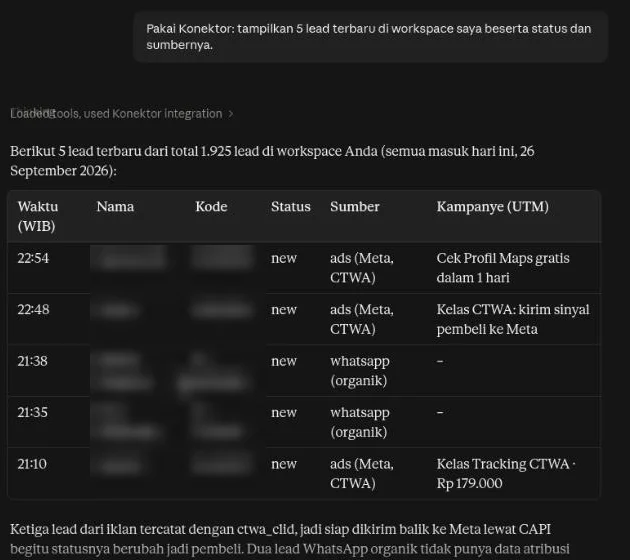
Audit the Inbox
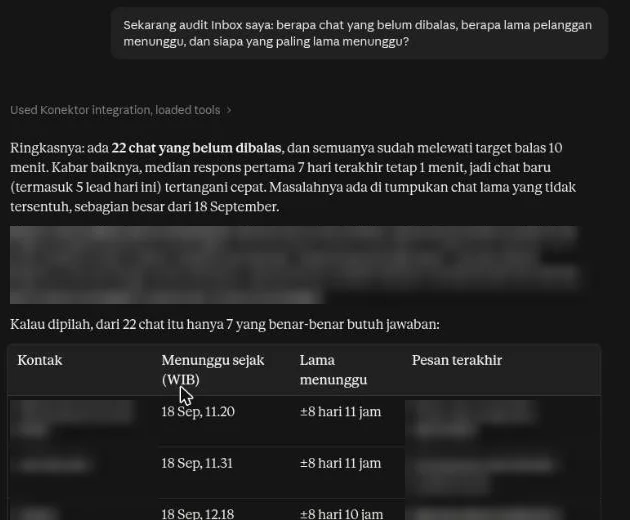
Example request: "Audit my Inbox: how many chats are unreplied, how long do customers wait, and who has waited longest?"
Claude shows the unreplied count, the wait time, the reply speed, and the chats that need an answer. Customer numbers are always masked.
Create a WhatsApp rule
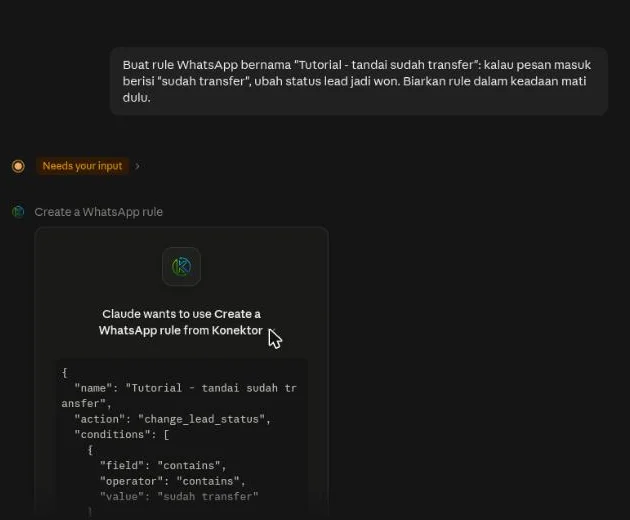
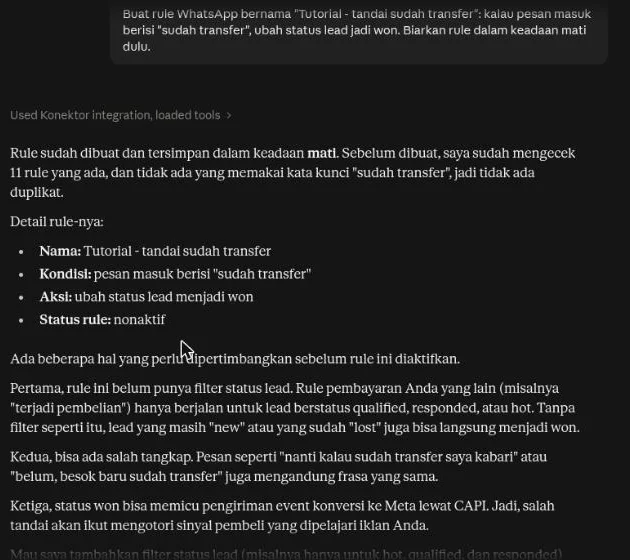
Example request: "Create a WhatsApp rule: when an incoming message contains 'sudah transfer', set the lead status to won. Keep the rule off for now."
Claude checks your existing rules, then shows the rule before it creates it. A new rule is always saved off. Turn it on from the dashboard, or ask Claude to turn it on after you agree with it.
Check tracking and conversions
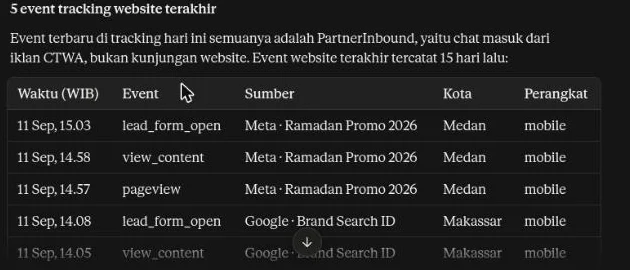
Example request: "Check the latest conversion log to Meta and show the last 5 website tracking events."
More requests to try:
- "Show the funnel summary for this month."
- "Which campaign brought the most leads this week?"
- "Did any conversion fail to reach Meta in the last 7 days?"
- "Show all my WhatsApp rules that are on."
Available tools
The connector provides the tools below. Only rule_create can add data, and no tool can change or delete existing Konektor data.
Every tool in this table is read-only, except the tool that creates a rule.
| Tool | Purpose |
|---|---|
workspace_get | Read the workspace profile, plan, and usage. |
tracking_status | Inspect aggregate tracking health. |
leads_list | Read a bounded and filterable lead list. |
lead_get | Read one selected lead. |
analytics_summary | Read a lead and conversion summary. |
analytics_funnel | Read lead counts for each funnel stage. |
analytics_campaigns | Compare campaign performance. |
feedback_status | Read a conversion-feedback delivery summary. |
feedback_pending | Read pending or failed conversion feedback. |
ads_overview | Read ad spend, ROAS, and ad connection health. |
ads_spend | Read daily ad spend per platform. |
inbox_audit | Check the Inbox: unreplied conversations, wait time, reply speed, and open work per label and team member. |
inbox_conversations | Read a filterable list of Inbox conversations. |
inbox_messages | Read the messages of one conversation. |
rules_list | Read your WhatsApp rules and how often they ran this week. |
rule_create | Create a WhatsApp rule that updates a lead. The rule stays off until you agree to turn it on. |
conversion_logs | Read each conversion that Konektor sent to an ad platform, and its delivery status. |
tracking_events | Read recent website tracking events with their campaign source. |
Aggregate tools do not send contact data. leads_list and lead_get can send personal data already stored in the workspace, such as a name, email address, or phone number. The Inbox tools send customer names and message text, with each customer number masked.
rule_create can only make rules that change a lead. Rules that send a WhatsApp message or call a webhook stay in the dashboard.
Data sent to Claude
Konektor sends data only after Claude invokes an enabled tool. Tool results can include:
- workspace profile, plan, and usage data;
- tracking, funnel, campaign, and conversion metrics;
- a bounded lead list;
- one lead record that you request;
- bounded conversion-feedback identifiers and status data;
- Inbox conversations and message text that you ask about;
- your WhatsApp rules;
- website tracking events without IP address or browser identifiers.
Konektor does not read the surrounding conversation, Claude memory, chat history, conversation summaries, or files that you upload to Claude.
Connection lifetime and retention
Konektor uses short-lived access that refreshes while the connection remains valid. You must authorize the connection again after 30 days of inactivity or after it reaches its 90-day limit.
Konektor removes expired authorization requests and codes after 24 hours. Konektor retains expired or revoked access hashes for up to 30 days. A revoked consent record can remain for up to 90 days when no retained access record references it.
Anthropic processes and may retain tool results under Anthropic policies. Konektor retention schedules do not delete data from Claude systems or conversation history. Read the Konektor Privacy Policy and the Anthropic Privacy Center before connecting personal data.
Revoke access
You can disconnect access from Claude or Konektor.
Disconnect from Claude
- Open Customize → Connectors.
- Find Konektor.
- Select Disconnect.
Revoke from Konektor
- Open Developer Settings for the workspace.
- Select the Claude tab.
- Select Revoke access for the connection.
- Confirm the action.
Konektor rejects the next call after you revoke the grant. Disconnecting does not automatically remove tool results already stored in Claude conversation history.
Troubleshoot the connection
| Symptom | What to check |
|---|---|
| A workspace is missing | Confirm that you are an owner or admin, the plan is Starter or higher, and the subscription is active or trialing. |
| The consent request expired | Start Connect again from Claude. Do not reuse an old consent page. |
| Claude requests authorization again | The connection may be inactive for 30 days, at its 90-day limit, revoked, or no longer authorized for the workspace. Reconnect if access is still required. |
| A tool is unavailable | Enable the connector for the conversation and review tool permissions in Claude. If an Inbox or rule tool is missing, select Connect again and approve the new permissions. |
| A lead is not found | Confirm that the lead belongs to the authorized workspace and its identifier is current. |
| A request is rate limited | Wait until the shared workspace request quota becomes available. |
Contact support@konektor.id for product help. Report security issues to security@konektor.id.
Use the advanced MCP endpoint
The directory connector uses this OAuth endpoint:
https://mcp.konektor.id/mcp/claude
The https://mcp.konektor.id/mcp endpoint remains available for advanced API-key integrations. The advanced endpoint has a separate catalog and scopes, including write capabilities when the plan and key permit them.
Read Agent API v2 and advanced MCP for API-key configuration. Do not use the advanced endpoint when the Claude connector meets your requirements.
Need More Help?
Our team is ready to help you maximize ad tracking and business attribution.
Try or continue
© 2026 Konektor. All rights reserved.