
Connect Official WhatsApp Business
Official WhatsApp Business is the path for daily operations. Your number reaches the team Inbox, templates stay managed, message status is visible, and the 24-hour window is clear.
The process takes about six minutes. You do it once per number.
Before you start
Prepare three things:
- Admin access to the Meta business account that owns the number.
- The WhatsApp number you plan to use, plus access to SMS or calls on it.
- An owner or admin role in your Konektor workspace.
Step 1 — Open the Connection Hub
- Sign in to the Konektor dashboard.
- Open WhatsApp > Connect WhatsApp.
The page shows three paths. Pick the Official WhatsApp Business card, then click Connect the official path.
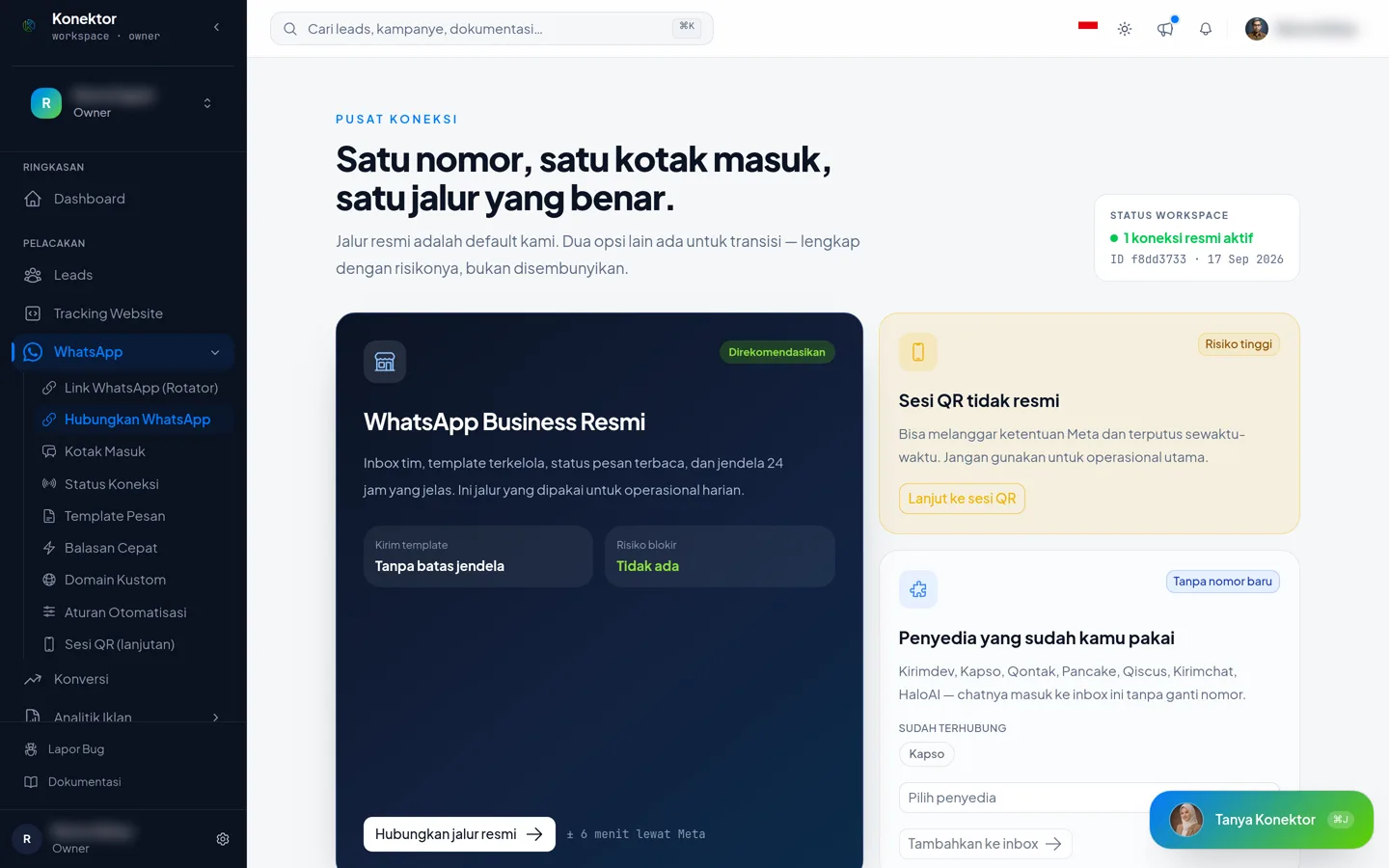
The other two cards exist for transitions:
| Card | Use it when |
|---|---|
| Unofficial QR session | Your old number is still on a phone and you need a temporary bridge. The card states the risk. |
| Providers you already use | You already use Kirimdev, Kapso, Qontak, Pancake, Qiscus, Kirimchat, or HaloAI, and you want those chats in the Inbox without changing your number. |
Step 2 — Start the official connection
The next page lists four activation steps on the right. Read the access reminder, then click Start the official connection.
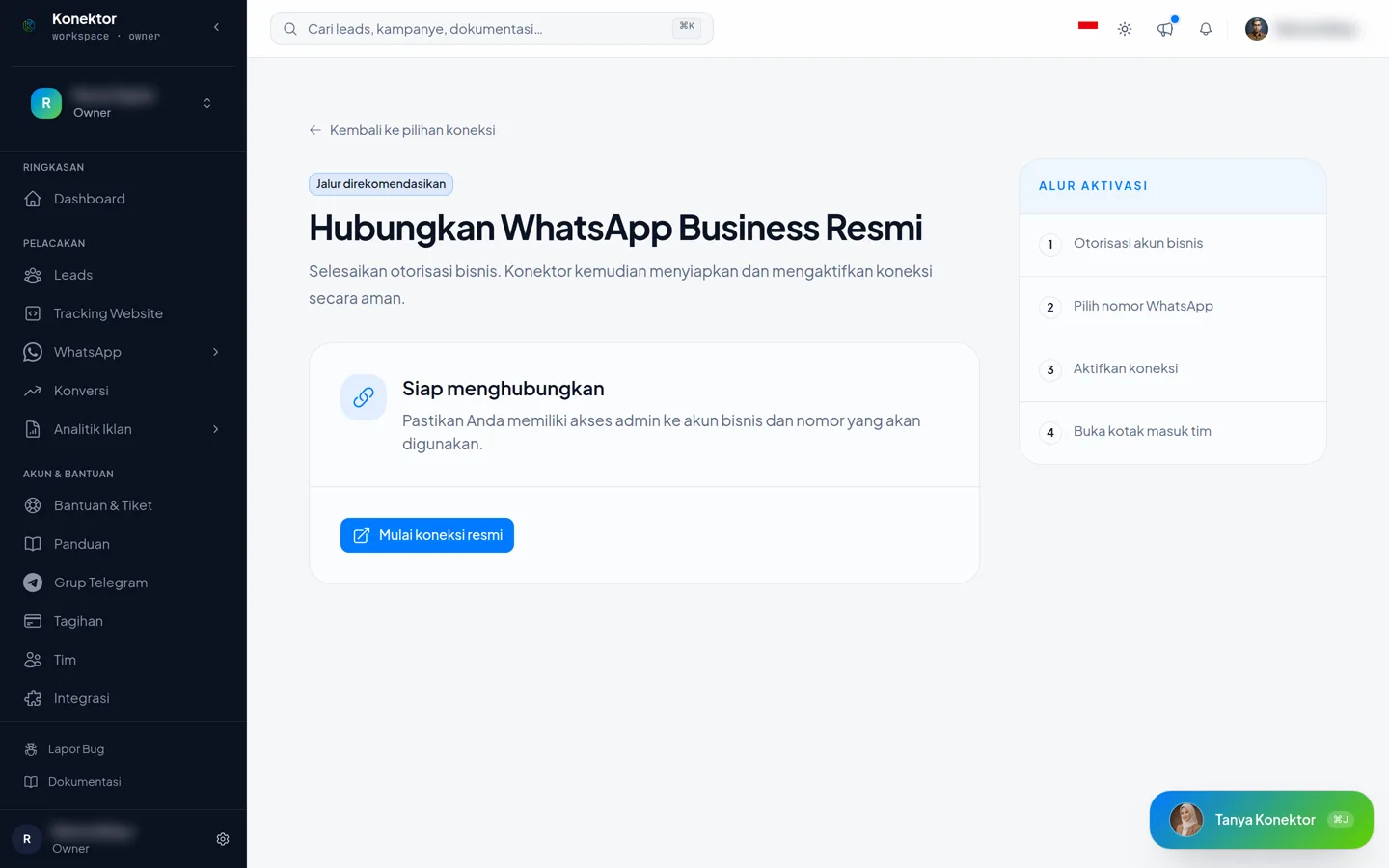
Konektor opens the Meta authorization window. Keep the Konektor page open while that window is open.
Step 3 — Finish the authorization in the Meta window
The Meta window asks for four things, in order:
- Log in with Facebook. Use the account with admin access to your business.
- Choose the business account. Pick the business portfolio that owns the number, or create one.
- Choose or add the WhatsApp number. Enter the business display name and the number you will use.
- Verify the number. Enter the code Meta sends by SMS or call.
The Meta window then closes itself and Konektor finishes the setup. You never copy a token, an id, or a key.
Step 4 — Check the connection status
Open WhatsApp > Connection Status. A connection that is ready shows Active and Send & receive.
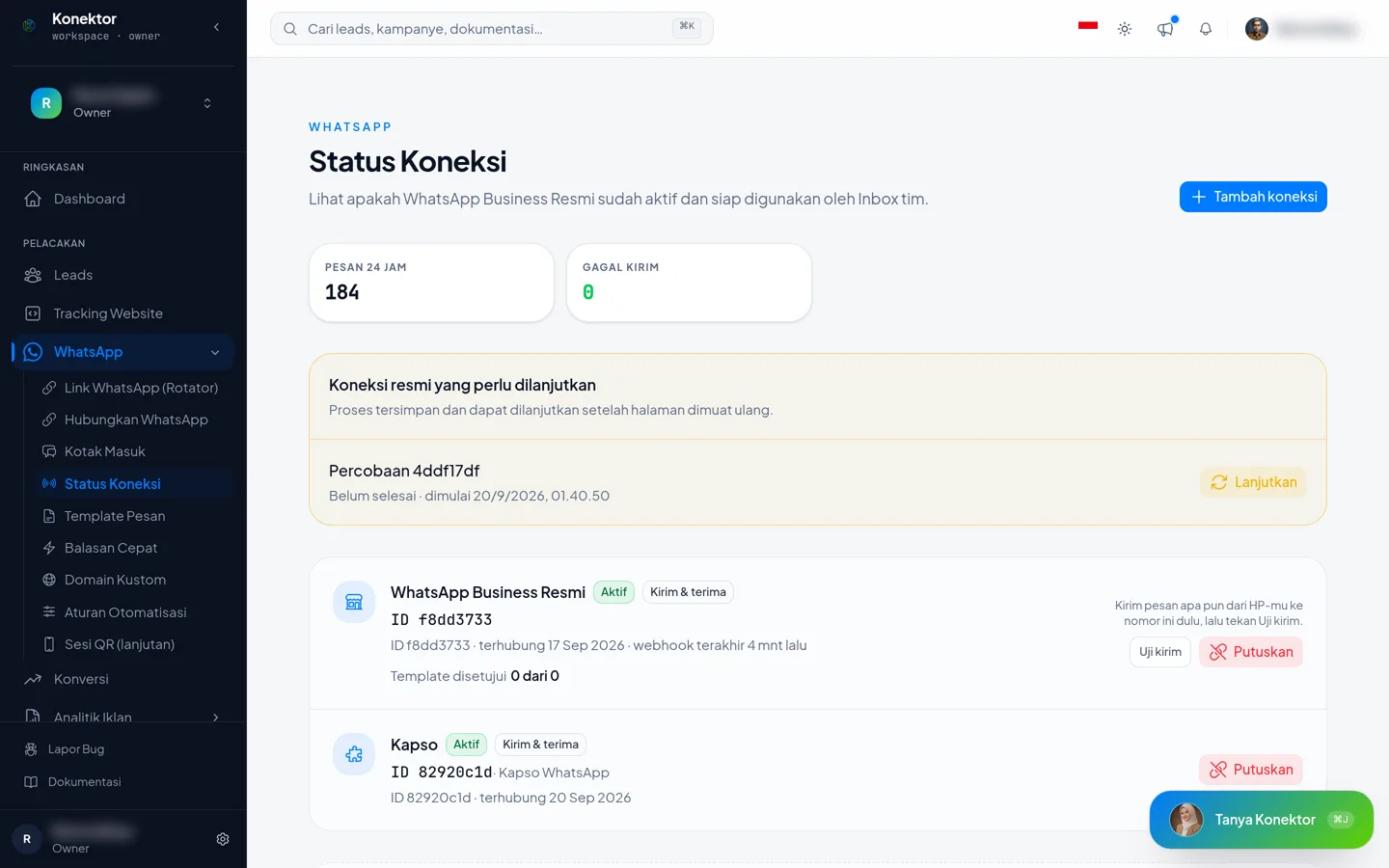
The page also shows:
| Item | What it means |
|---|---|
| Messages, 24 hours | Messages in and out through this number in the last 24 hours. |
| Failed sends | Messages that failed in the last 24 hours. |
| Approved templates | How many of your templates Meta approved. |
| Test send | Sends one test message to your own number. |
Step 5 — Run a test send
- Send any message from your phone to the number you just connected.
- Go back to Connection Status, then click Test send.
The order matters: WhatsApp allows a free reply only within 24 hours after the customer writes first. Without an inbound message, the test send is refused.
Once the test send works, open the Inbox. Your conversation is already there.
If the Meta window closed early
The Connection Status page shows a Connection left to finish box with its start time. Click Continue to reopen the authorization window where you left it.
An unfinished setup sends nothing and charges nothing. You may leave it and start again from the beginning at any time.
Number already registered to a WhatsApp account
The Meta window can show a message that the phone number is already registered to a WhatsApp account. This means that the number is still active in the WhatsApp or WhatsApp Business app. The Konektor official path uses a number that is not active in the app. Select one of these options.
| Option | Steps | Result |
|---|---|---|
| Remove the number from the app | Back up the chats that you need. Delete the WhatsApp account of that number from the app on the phone. Then click Start the official connection again. | The team replies from the Konektor Inbox. |
| Use another number | Prepare a number that is not active in the WhatsApp app, then repeat Step 2. | The old number stays in the app. |
| Keep the app on the phone | Open WhatsApp > Connect WhatsApp, then select Unofficial QR session. | This can violate Meta terms. Meta can restrict or block the number. |
If the app must stay active and you still need an official path, connect the number through Kapso in coexistence mode. Konektor does not read Click-to-WhatsApp ad data from Kapso chats.
If Konektor shows Number already connected, click Manual verification. If the result does not change, release the number from the old provider or app. Then start again from WhatsApp > Connect WhatsApp.
Adding a second number
One workspace can use more than one number. Click Add connection on the Connection Status page, then repeat steps 2 to 5.
Once the second number is active, the Inbox shows a Number section in the left panel. That section filters conversations per number. Read WhatsApp Inbox for the detail.
Common problems
| Situation | What to do |
|---|---|
| The Meta window does not open | Allow pop-ups for konektor.id in your browser settings, then click Start the official connection again. |
| The number is already in the WhatsApp app | Read Number already registered to a WhatsApp account. |
| The number is connected to another provider | Release the number from the old provider first, then try again. |
| The verification code does not arrive | Choose the voice call instead of SMS in the Meta window. |
| The connection is active but no message arrives | Send one message from another phone to that number. The first message opens the conversation. |
| The test send is refused | Ask the customer to write first, or send an approved message template. |
For deeper problems, read WhatsApp Inbox help.
Related links
Need More Help?
Our team is ready to help you maximize ad tracking and business attribution.
Try or continue
© 2026 Konektor. All rights reserved.