
WhatsApp Inbox
The Inbox gathers your workspace's Official WhatsApp Business, WhatsApp Session, and chat provider conversations in one place. Your team reads, replies, assigns, labels, and resolves conversations without opening WhatsApp on each person's phone.
This guide covers every part of the Inbox. Read Connect Official WhatsApp Business first if you do not have an active connection yet.
Opening the Inbox
- Sign in to the Konektor dashboard.
- Open the Inbox menu.
- Select one conversation from the list on the left.
New conversations appear automatically when a customer messages a WhatsApp number connected to your workspace.
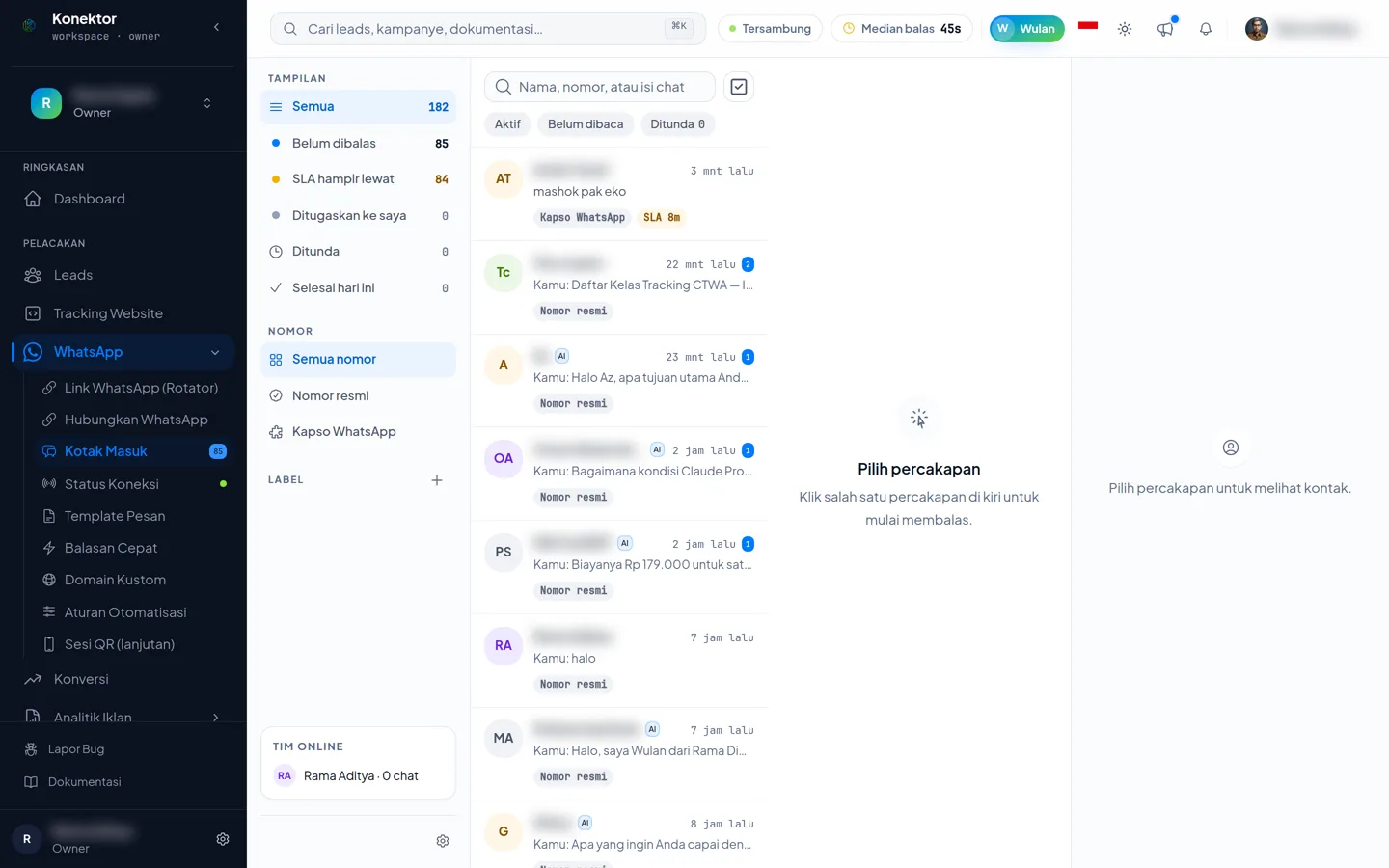
The status bar at the top
The bar above the conversation list shows the connection state and two shortcuts:
| Item | What it means |
|---|---|
| Realtime | New messages arrive on their own, with no page reload. |
| Connected | The Inbox is connected, but new messages arrive a little slower. Reload the page if you need to. |
| Median reply | The median time from a customer's first message to the team's first reply, over the last 7 days. |
| Ask Wulan (⌘J) | Opens the Konektor assistant to ask about your workspace data. |
Saved views
The left panel shows six ready-made views. Click one to filter the conversation list.
| View | Shows |
|---|---|
| All | Every conversation in the workspace. |
| Unreplied | The last message came from the customer and the conversation is still open. |
| SLA due soon | Unreplied conversations approaching your workspace's SLA threshold. |
| Assigned to me | Conversations where you are the assignee. |
| Snoozed | Conversations currently snoozed. |
| Resolved today | Conversations you marked resolved today. |
The left panel also lists team members who are online, with the number of open conversations each one handles. Use the Online / Away switch next to your own name to change your status.
Number
The Number section appears in the left panel once your workspace has two or more connected WhatsApp numbers. It does not appear with one number.
Click one number to show only conversations from that number. Click All numbers to show conversations from every number again.
The number filter combines with the view and label you already picked.
Each conversation row and header shows which number the message came in on, as a small "Received via …" caption.
Labels
Labels sort conversations by your own categories, such as "Hot lead" or "Complaint". Click + Label to create one: enter a name (up to 40 characters) and pick a color. Only owners and admins can create, edit, or delete labels; other members can only apply them.
Each workspace keeps at most 20 labels. Once that limit is reached, the add-label button shows "The 20-label limit is reached. Delete a label you do not use."
Add a label to one conversation from the right panel, Contact tab, Labels section.
The contact panel
The right panel has three tabs.
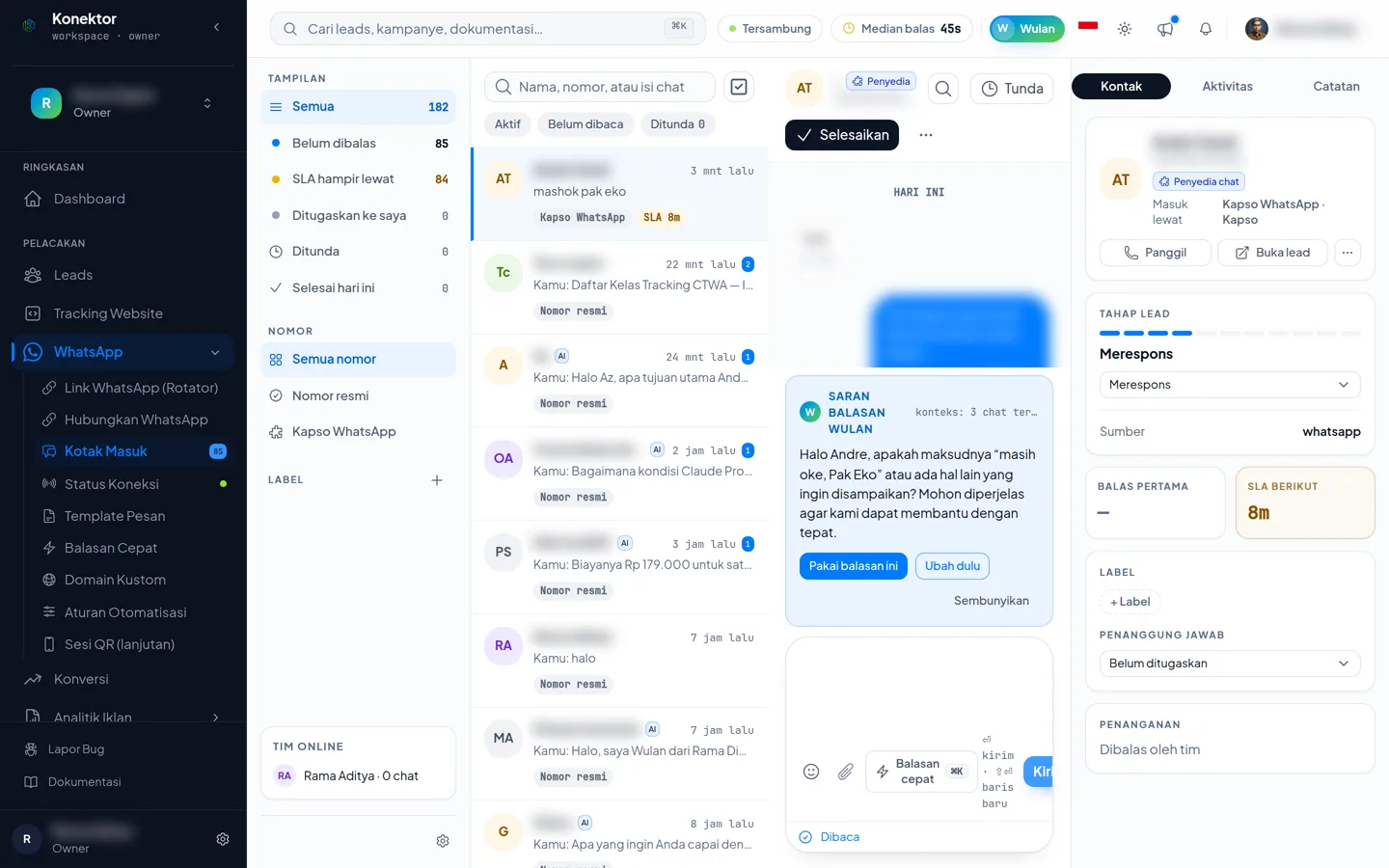
| Tab | What it holds |
|---|---|
| Contact | Customer identity, lead stage, SLA, labels, assignee, and handling. |
| Activity | The conversation's history, for example when someone resolved it. |
| Notes | Internal team notes. See Internal notes. |
Lead stage
The Lead stage section links the conversation to its lead. You can change the stage from here. Only the lead's assignee may change it; everyone else sees the reason "Only this lead's assignee can change its stage."
The section also shows Source, Campaign, and Deal value when the lead carries them. A conversation with no lead shows a Create lead button.
SLA
First reply shows how long the team took to answer the customer's first message. Next SLA shows the time left before the conversation enters the SLA close to breach view.
Assignee
Pick the team member who owns the conversation. Conversations you own appear in the Assigned to me view.
Handling
The Handling section names who answers that conversation.
| State | What it shows | Its button |
|---|---|---|
| The AI assistant answers | "Answered by AI: {name}" | Take over |
| A team member answers | "Answered by the team" | Return to AI |
Click Take over to stop the automatic replies and answer yourself. Click Return to AI when the assistant may continue again.
Search and select multiple conversations
The search box above the conversation list searches contact names and numbers. It does not search message content; use the search inside a conversation for that (see below).
Click Select multiple to mark several conversations at once, then:
- Assign moves the selected conversations to one assignee.
- Label adds one label to every selected conversation.
- Resolve marks every selected conversation resolved.
You can select up to 50 conversations at once. Selecting a 51st is refused with "Maximum 50 conversations at once."
Snoozing a conversation
Click Snooze at the top of a conversation to hide it until a chosen time:
- In 1 hour
- This evening (4:00 PM)
- Tomorrow morning (9:00 AM)
- Monday morning (9:00 AM the next Monday)
- Pick a time… for any date and time
You can snooze a conversation up to 30 days ahead. A snoozed conversation reopens on its own within a few minutes after the chosen time arrives.
The 24-hour window
WhatsApp limits free-form replies on an official connection: once a customer messages you, you have 24 hours to reply with any message. The 24-hour window bar above the conversation shows the time left, and changes color as it nears the limit.
Once the window closes, the message box only accepts an approved template. Send one template to open a new 24-hour window as soon as the customer replies.
The 24-hour window applies only to Official WhatsApp Business connections. WhatsApp Sessions and chat providers do not have this limit.
Attachments and per-type limits
An Official WhatsApp Business connection can send and receive these files:
| Type | Formats | Size limit | Caption |
|---|---|---|---|
| Image | JPG, PNG | 5 MB | up to 1024 characters |
| Video | MP4, 3GP | 16 MB | up to 1024 characters |
| Audio | AAC, AMR, MP3, M4A, OGG | 16 MB | none |
| Document | PDF, Word, Excel, PowerPoint, text | 25 MB | up to 1024 characters |
| Sticker | WebP | 100 KB static, 500 KB animated | none |
Click the attachment icon in the message box to choose a file, or drag a file onto the conversation area. A file over the limit shows "File is too large. Limit for {type} is {limit}."; an unsupported format shows "This format is not supported. Send JPG, PNG, MP4, MP3, PDF, or an Office document."
Voice notes
Click the microphone icon in the message box to record a voice note. Your browser asks for microphone permission first.
Recording stops automatically at 120 seconds. Once it stops, play it back before choosing Send or Discard.
Voice notes work on Official WhatsApp Business connections and on the Kapso chat provider. If your browser does not support recording, the microphone icon is hidden; you can still send a recording as a regular audio attachment.
Reactions and quoted replies
Hover over a message on an official connection to react with an emoji (👍 ❤️ 😂 🙏 😮 😢). Click the same emoji again to remove it.
Click Reply on a message's menu to quote it; the quote appears above the message box before you send. A quoted reply can be sent only from an official connection. WhatsApp Sessions and chat providers can receive a quote from a customer, but cannot send one.
Internal notes and mentioning teammates
Open the Notes tab on the right panel to write a note only your team can see. Internal notes are never sent to the customer.
Type @ followed by a name to mention a teammate in a note. A mentioned teammate is notified. You can only mention someone who is already a member of this workspace.
Searching inside a conversation
Click the search icon at the top of a conversation to search the words in the open messages. Results show as "{position} of {count}"; use the arrow buttons to move between them, and the matching message is highlighted.
Exporting a conversation
Click the ⋯ menu at the top of a conversation, then choose Export transcript (CSV) to download the conversation history. The file lists the time, direction, type, sender, content, and status of every message. Attachments appear as a short label such as "image" or "document: file name", without a file link. Internal notes are not included.
Keyboard shortcuts and ⌘K
Press ? anywhere in the Inbox to see this shortcut list on screen.
| Key | Action |
|---|---|
j / k | Move to the next or previous conversation |
e | Resolve the conversation |
? | Open this shortcut list |
Esc | Exit select mode, or close an open panel |
⌘K (Ctrl+K on Windows) | Open quick replies and official templates |
SLA threshold
Owners and admins can set the workspace SLA threshold from the settings icon at the bottom of the left panel. This threshold decides when a conversation enters the SLA due soon view, in minutes, from 1 to 1440.
WhatsApp Sessions and chat providers without media
Conversations on a WhatsApp Session (QR) or a chat provider can still be read in the Inbox. A text reply from the message box works for a chat provider that supports it, namely Kirimdev and Kapso; for a QR session or another chat provider, reply from the WhatsApp app on the phone or from that chat provider's app. Kapso can also send attachments and voice notes. A QR session and the other chat providers do not support attachments, voice notes, or reactions; the related buttons show disabled with the reason "Attachments are for Official WhatsApp Business only. Connect the official channel to send media."
Replies from the chat provider's app
A reply your team sends from the Qontak, Pancake, HaloAI, Kirimchat, Kirimdev, or Kapso console shows up in the Inbox with its origin, for example "From Qontak". A reply sent from the WhatsApp app on the phone for a WhatsApp Session shows the same way, with the label "From the WhatsApp app on the phone".
Qiscus is the exception. A reply sent from the Qiscus console does not show up in the Inbox. After you reply there, click Mark as replied so the conversation leaves the Unreplied view.
Some chat providers accept a reply only from their own app, and a WhatsApp Session (QR) accepts a reply only from the WhatsApp app on the phone. For those conversations, the Inbox message box shows the reason, and you reply from that app.
Common errors
| Situation | Text shown | What to do |
|---|---|---|
| The 24-hour window closed | "The 24-hour window is closed. Send a template to reopen the conversation." | Send an approved template. |
| File too large | "File is too large. Limit for {type} is {limit}." | Send a smaller file. |
| Unsupported file format | "This format is not supported. Send JPG, PNG, MP4, MP3, PDF, or an Office document." | Switch to a supported format. |
| Microphone permission denied | "Allow microphone access in your browser settings, then try again." | Allow microphone access in your browser settings, then try again. |
| Too many messages at once | "Too many messages in a short time. Try again shortly." | Wait a moment, then resend. |
| Number restricted by WhatsApp | "WhatsApp has restricted this number over message quality. Check the Connection Status page." | Open the Connection Status page for details. |
| Label limit reached | "The 20-label limit is reached. Delete a label you do not use." | Delete a label you no longer use. |
| Select-multiple limit reached | "Maximum 50 conversations at once." | Work in smaller groups of up to 50 conversations. |
| Mentioned person is not a workspace member | "The mentioned person is not a member of this workspace." | Mention someone who already belongs to this workspace. |
For more detailed help, read WhatsApp Inbox Troubleshooting.
Related guides
Need More Help?
Our team is ready to help you maximize ad tracking and business attribution.
Try or continue
© 2026 Konektor. All rights reserved.